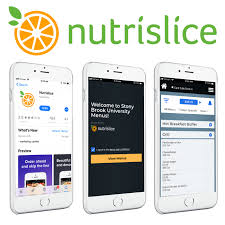
 As the year progressed, many returning Northwood students were confused about why the Nutrislice app was not operational. This was not on the kitchen staff; the app’s servers had been down and were not working. However, the servers are now up and running, and here is everything you need to know about the Nutrislice App and how to use it.
 To start, if you want to install this app, go to your app store on your phone and search “Nutrislice.” The app will have a lowercase n with a blue line underneath it. Once you have installed it, it will have a search bar where you can search “Northwood.” Northwood School will pop up with a picture of the front of our school. Then you want to press on Northwood School and there will be breakfast, lunch, and dinner tabs on the top as well as the date. Underneath each of these tabs is what we are having for a meal during that time of the day. It will even show you many days into the future.
Another great feature of this app is that each meal will display its complete nutritional values. You can access the nutritional value by pressing on the item. This will also indicate any food allergies that may affect you, allowing you to avoid specific items if you have a food allergy. Nutritional information also provides you with a nutrition calculator, which can break down the plate you are having and the main food groups in the meal. With the ability to see what you are having multiple days into the future, this allows you to meal plan, and if you are a person who tracks your macronutrients, the nutritional information is super beneficial.


Max Stracar ’26 is a new student. He did not have the Nutrislice app, but after installing it and checking out all that it has to offer. “As a person who likes to track what I’m eating and try to hit a protein goal, this app makes that a lot easier,” Stracar said. “When I first got here, I was concerned about getting all my nutrients in because I did not have a way to see what the breakdown of my food was. This app is super helpful and even a relief to me,” added Stracar.
“I love to plan my meals out when I am at home. It was challenging at the start of the year because I had no idea what would be for dinner every night. This app is going to be super helpful, and I am excited to use it,” Hunter Bridges ’26 said.
Download the Nutrislice app in your phone’s app store and try it out for yourself!